CANTCU has 8 User Values. A User Value is a custom realtime channel calculated from other realtime values, either with a Map or with a Math expression.
Each User Value is calculated at 100 Hz and is available as a normal realtime value (User Value 1 to User Value 8). It can be monitored, logged and selected wherever realtime values are used, for example as a map axis or digital output source, and it can be referenced by other User Values.
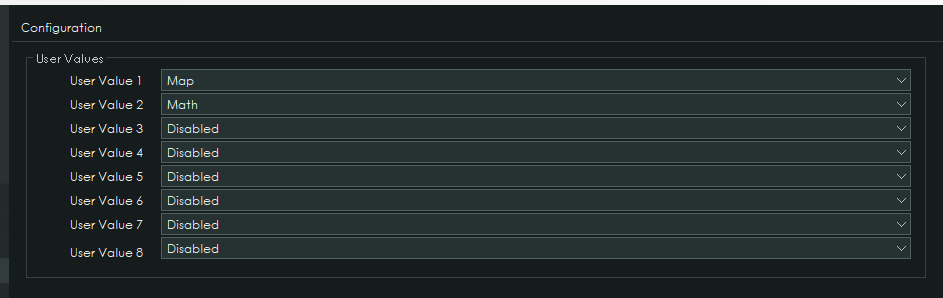
¶ Configuration
Select the mode for each User Value:
| Mode | Description |
|---|---|
| Disabled | User Value is not calculated |
| Map | Output is read from a 2D or 3D map |
| Math | Output is calculated from a math expression |
¶ Identity
| Setting | Description |
|---|---|
| Label | Name shown for the User Value, up to 10 characters |
| Unit | Display unit for the value |
| Final Value | Live output of the User Value while connected |
¶ Map Mode
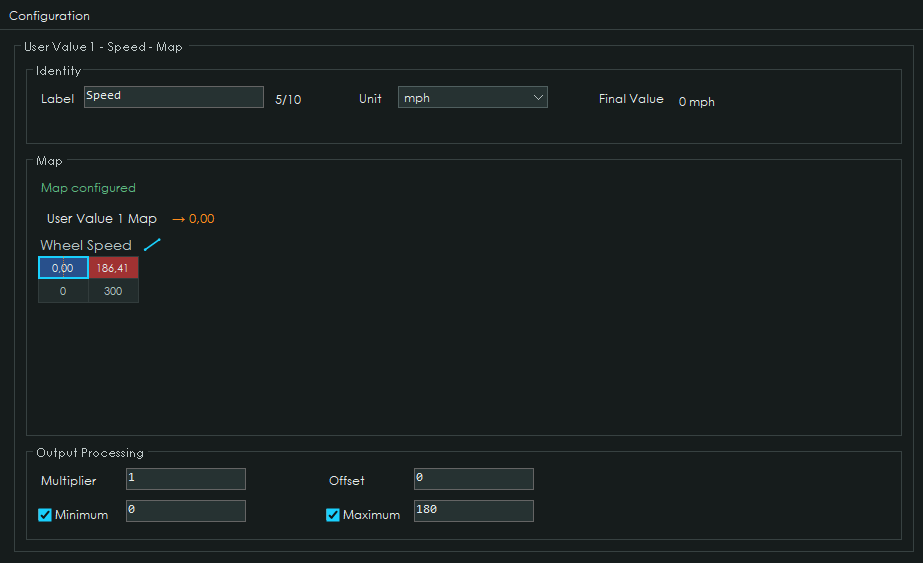
In Map mode the output is read from a user-definable 2D or 3D map with freely selectable axes. Each axis can have up to 16 breakpoints, with a maximum of 256 cells.
Right-click an axis to insert or remove breakpoints, select the axis realtime value with Configure X axis…, or add a second axis with Add Y axis. Values between breakpoints are interpolated.
If no map has been configured, the output is 0 and the status shows Map not configured.
¶ Output Processing
The map output is processed before it becomes the final value:
| Setting | Description |
|---|---|
| Multiplier | Map output is multiplied by this value |
| Offset | Added after the multiplier |
| Minimum | Optional lower limit for the final value |
| Maximum | Optional upper limit for the final value |
Final Value = Map output × Multiplier + Offset, limited to Minimum and Maximum when enabled.
The example above converts Wheel Speed from km/h to mph with a two-point map (0 → 0, 300 → 186.41) and limits the result to 0–180 mph.
¶ Math Mode
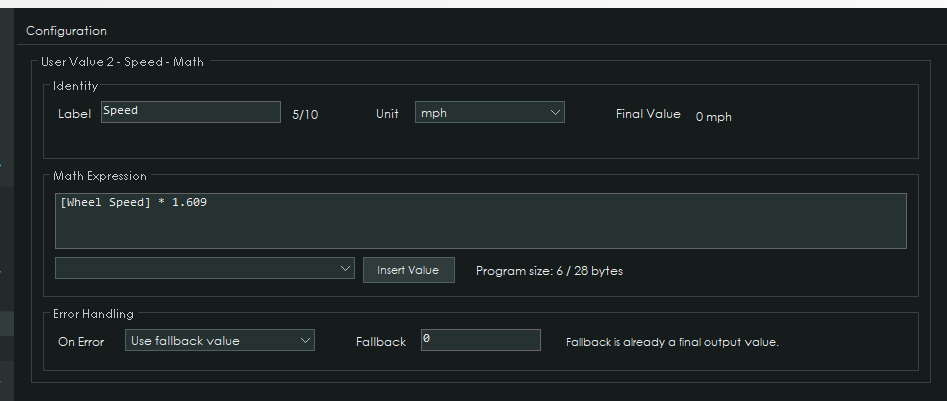
In Math mode the output is calculated from an expression typed into the Math Expression box.
Realtime values are written in square brackets, for example [Wheel Speed] or [Engine RPM]. Use the dropdown and Insert Value to add a realtime value without typing its name. Other User Values can be used the same way, for example [User Value 1]. Circular references between User Values are not allowed.
Numbers can be entered as decimals with up to 3 decimal places, or as hexadecimal values such as 0xFF. All calculations use 3 decimal places.
The expression is checked while typing. Program size shows how much of the 28-byte expression space is used. If an expression is too long, split it over two User Values.
¶ Operators
| Operator | Description |
|---|---|
+ - * / % |
Add, subtract, multiply, divide, remainder |
== != < <= > >= |
Comparison, result is 1 (true) or 0 (false) |
&& \|\| ! |
Logical AND, OR, NOT |
& \| ^ ~ << >> |
Bitwise operations on the whole-number part |
( ) |
Grouping |
¶ Functions
| Function | Description |
|---|---|
ABS(x) |
Absolute value |
MIN(a, b) |
Smaller of two values |
MAX(a, b) |
Larger of two values |
CLAMP(x, min, max) |
Limits x between min and max |
ROUND(x) |
Rounds to the nearest whole number |
FLOOR(x) |
Rounds down |
CEIL(x) |
Rounds up |
IF(condition, a, b) |
Returns a when the condition is non-zero, otherwise b |
¶ Examples
| Expression | Result |
|---|---|
[Wheel Speed] * 0.6214 |
Wheel speed converted from km/h to mph |
IF([Engine RPM] > 6000, 1, 0) |
1 above 6000 RPM, otherwise 0 |
CLAMP([Pedal Position] * 2, 0, 100) |
Doubled pedal position, limited to 0–100 |
[User Value 1] - [User Value 2] |
Difference between two User Values |
¶ Error Handling
If the expression cannot be calculated, for example on division by zero, a numeric overflow or an unavailable source value, the On Error setting decides the output:
| On Error | Description |
|---|---|
| Use fallback value | Output is set to the Fallback value |
| Hold last valid value | Output keeps the last valid result. Fallback is used until a first valid result exists |
The Fallback value is used directly as the final output.
The User Value Validity realtime value shows which User Values currently have a valid result.